Requirement : When you want manual control over your inventory consumption for inventory made from Purchase order item requirements
PRE-SETUP Information
-
Create new Project Contract
USMF/Project management and accounting/Common/Projects/Project contracts
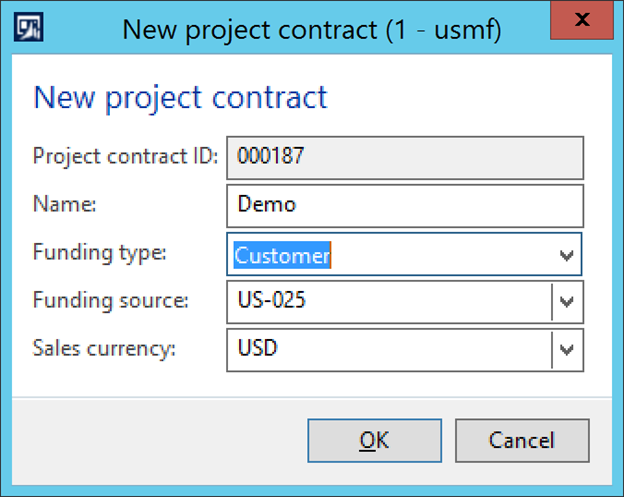
Enter details as below:
Project contract ID: 000187(comes automatically based on number sequence setup)
Name: Demo
Funding Type: Customer
Funding Source: US-025
Sales Currency: USD
Click OK
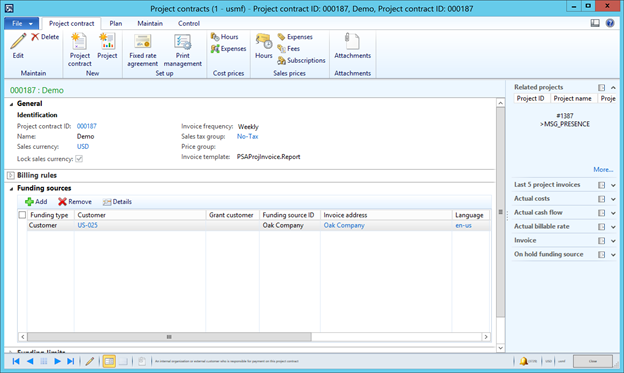
Save & close project contact form
-
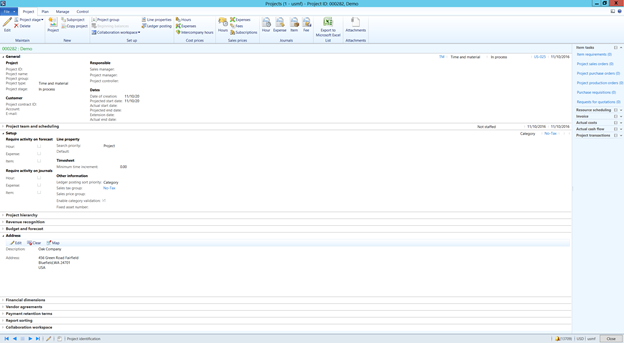
Create new Project
USMF/Project management and accounting/Common/Projects/All Projects
Enter details as below:
Project type: Time and Material
Project contract ID: 000282(comes automatically)
Name: Demo
Project group: TM
Customer: US-025
Sales Currency: USD
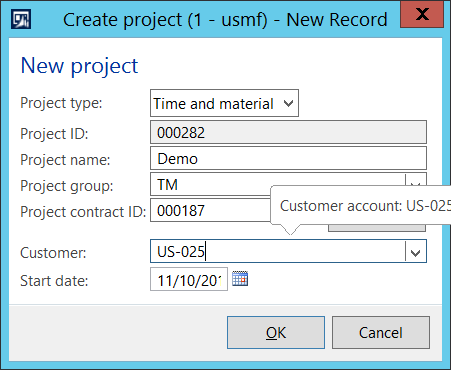
Click OK
-
Set parameter in Project management paraments
USMF/Project management and accounting/Setup/ Project management and accounting parameters
General tab >Project Purchase orders >Item consumption should be turned off which tells that the items should be immediately consumed if it is marked

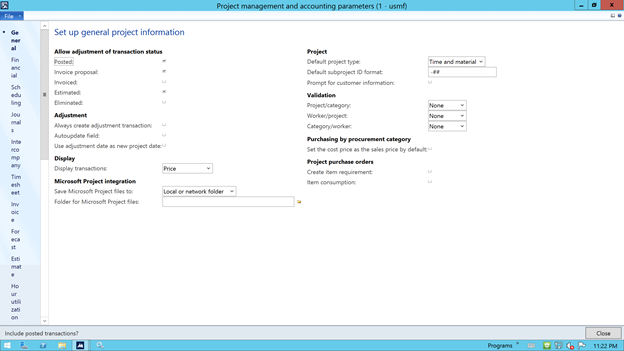
Using Item requirement form
Step1: Enter Item requirement
USMF/Project management and accounting/Common/Projects/All projects
Select project 000282
Open Item requirement from Plan tab
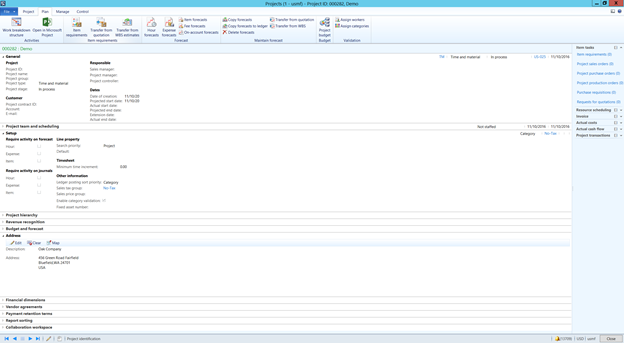
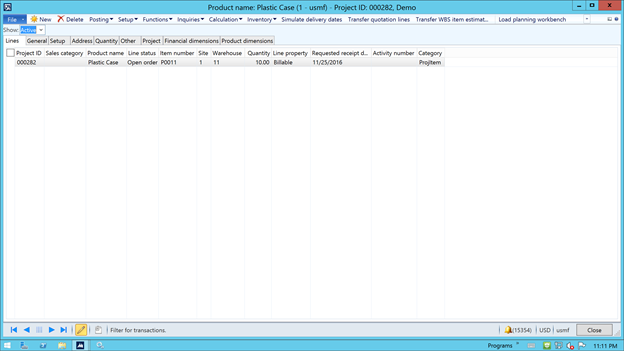
Click New
Enter Item number : P0011
Site:1
Warehouse :11
Quantity:10
Line property: Billable
Click Project tab
Enter Unit price(sales) as 10 USD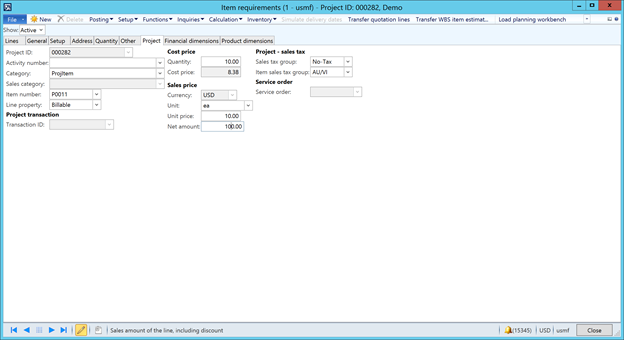
Now click Inquiries>sales orders
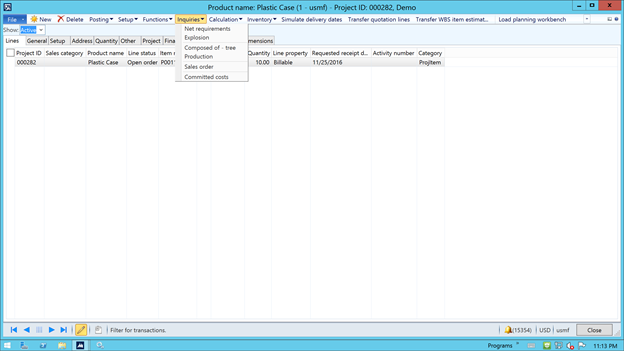
This will open the sales order created
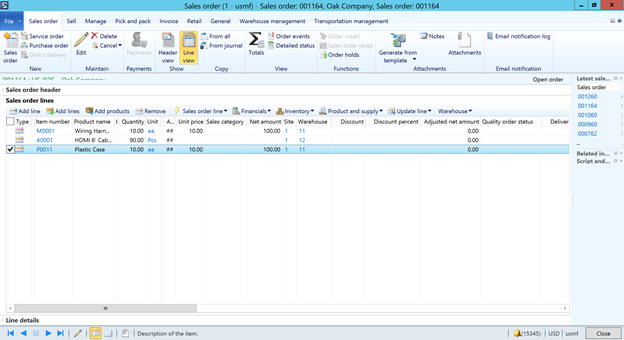
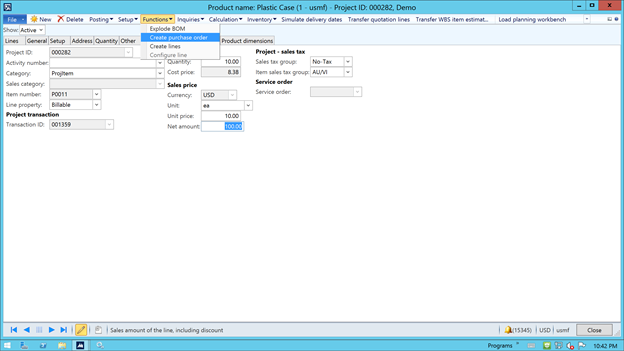
Step2: Make a Purchase order for this from Item requirement form itself
Click Functions>Create Purchase order
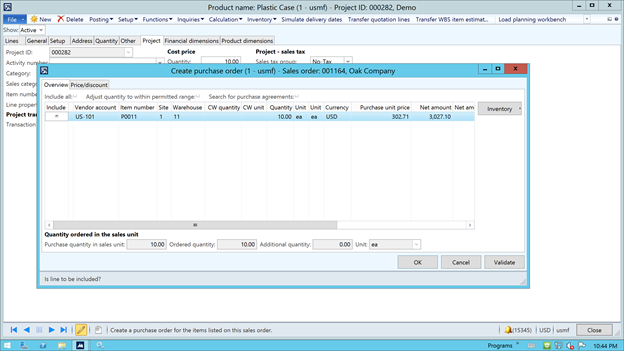
Select Include checkbox and Click OK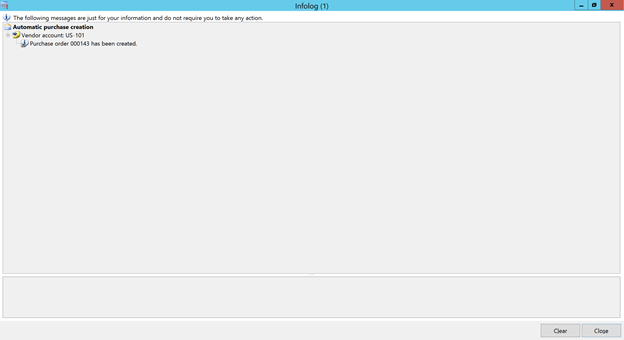
Step3: open created Po and receive
USMF/Procurement and sourcing/Common/Purchase orders/All purchase orders
Select PO 000143 created in above step
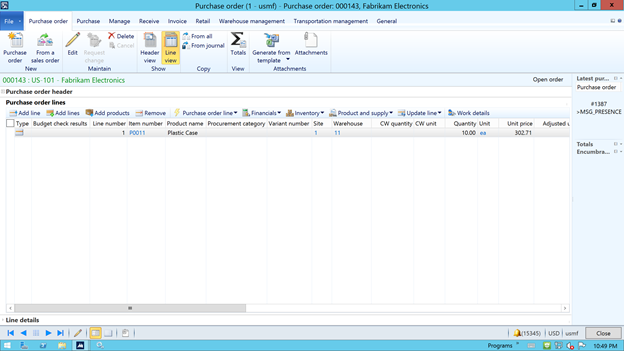
Action Pane>Purchase tab >Click Confirm button
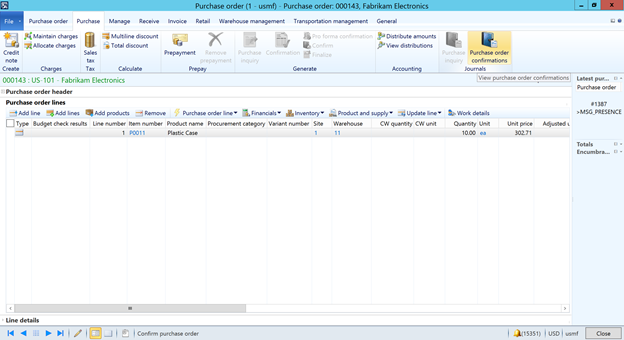
Action Pane>Receive tab
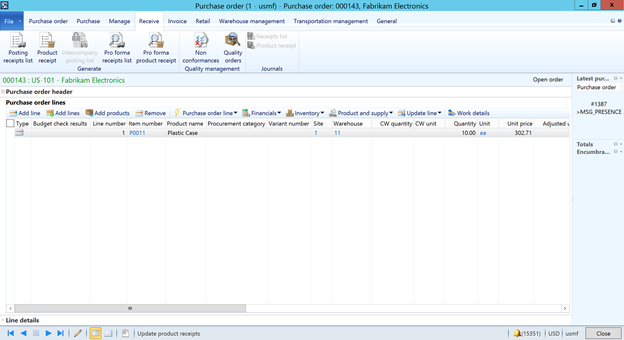
Click Generate Product Receipt
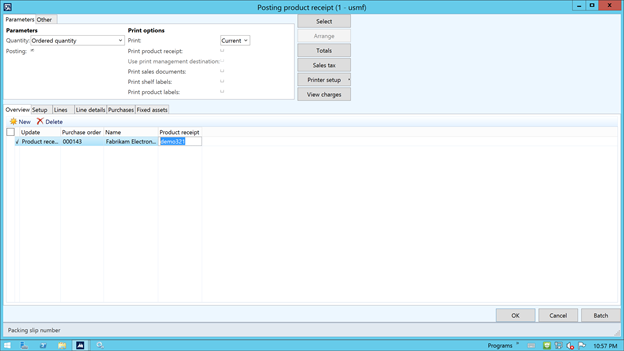
Key in product receipt number as ‘demo321’ and click Ok
We will get a dialog asking “Consume items for the project immediately” Yes or No option will be there
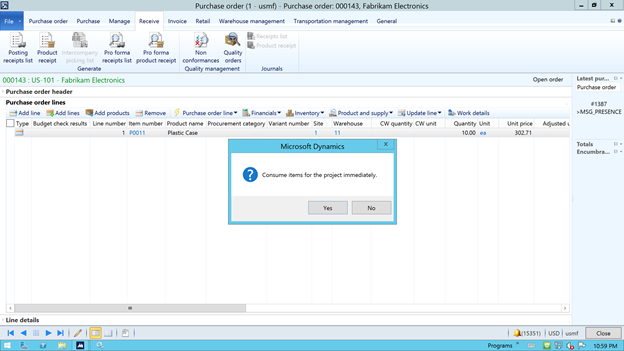
Please ask users to click NO
Note: If we click Yes then the inventory will get automatically consumed
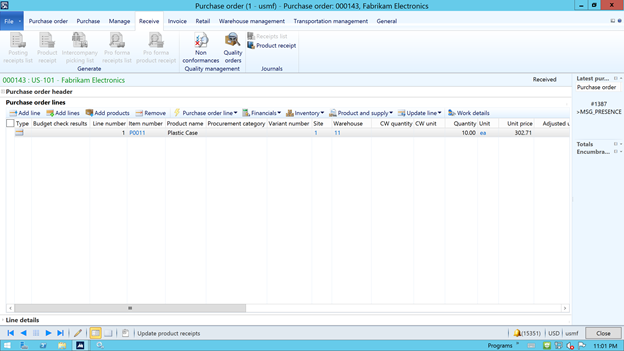
Click product receipt journal
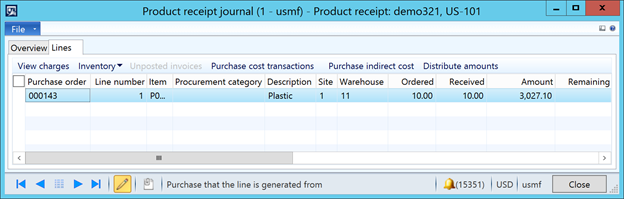
Step 4: Check Sale order Line status
USMF/Project management and accounting/Common/Projects/All projects
Select project 000282
Plan tab >Item requirements
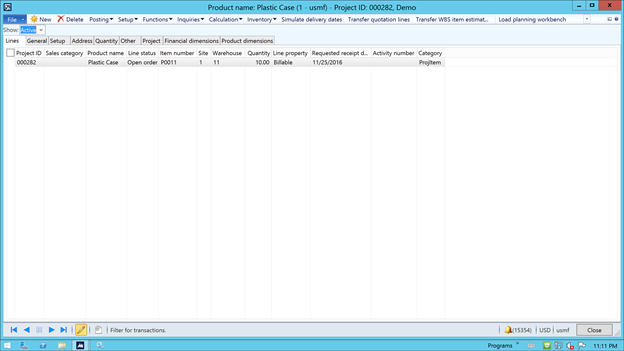
Select Show All and Inquiries >Sales order
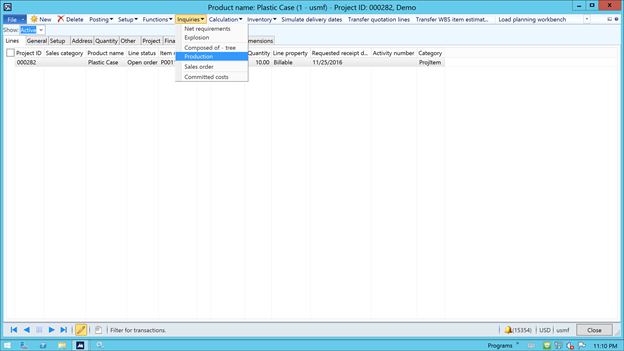
Step 5: Check Line status of the Sales order
*** Actual Result ***
We see that the line status of the Sales is “open order” which is correct as we had not consumed the inventory purchased automatically
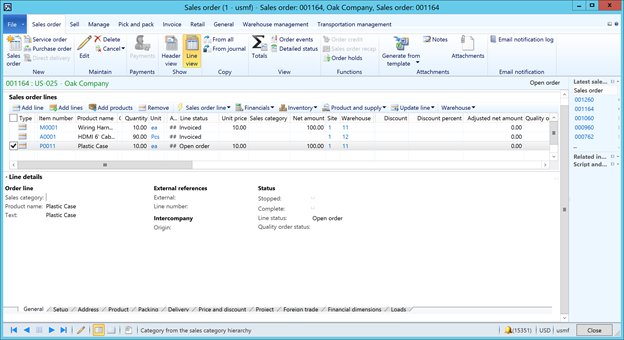
*** Expected Result ***
Same as actual
Step 6: Make a picking list and packing slip from Item requirements form for consuming quantity
Click Posting>picking list
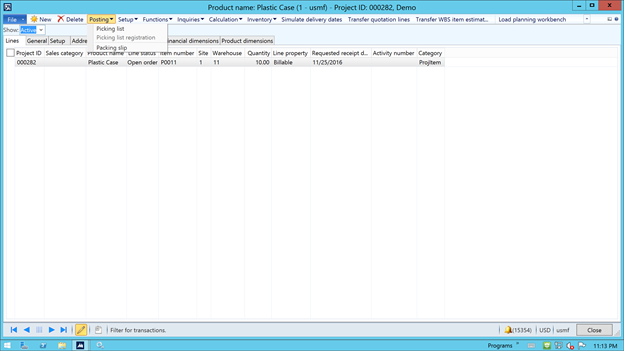
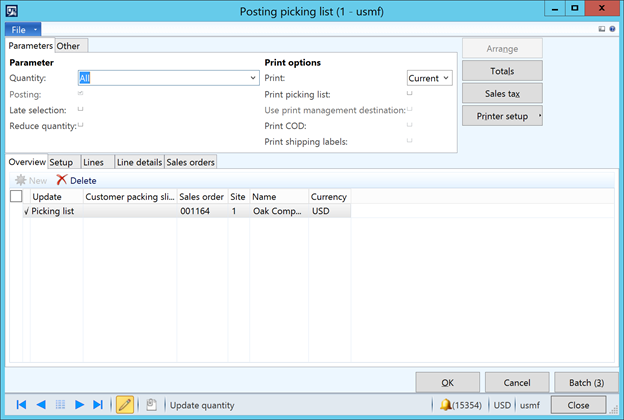
Click Ok
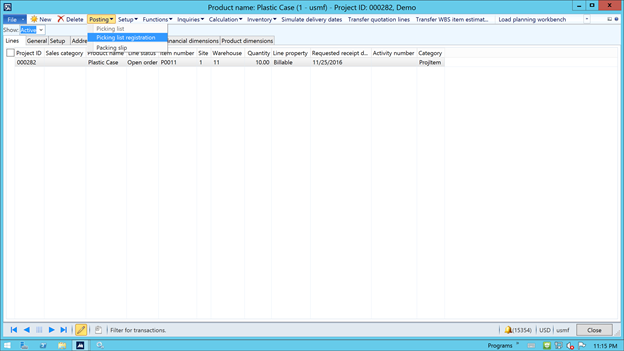
Click posting>Picking list registration
Updates>update All
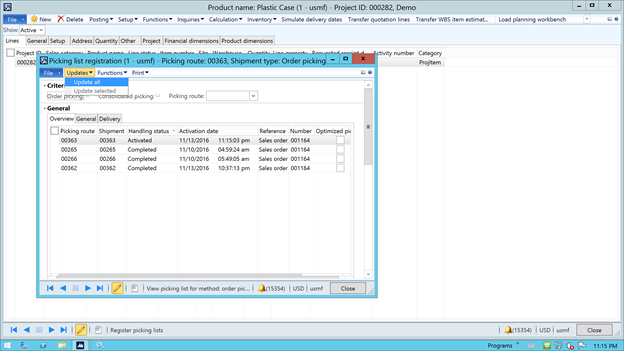
Click close
Click Posting >packing slip
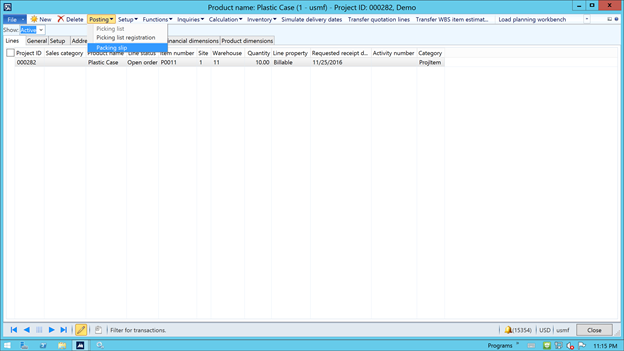
Update Quantity as Picked
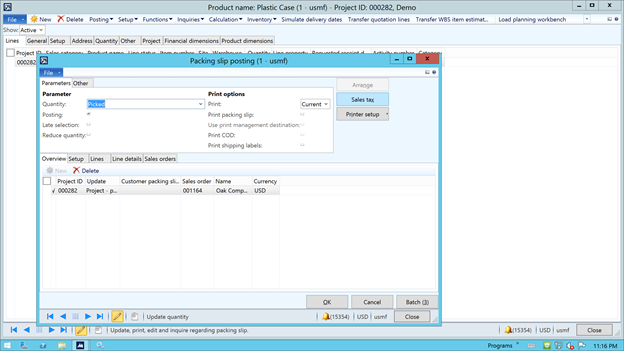
Click Ok
Step7 : Check project posted transactions
USMF/Project management and accounting/Common/Projects/All projects
Select project 000282
Action Pane>manage tab
Click Related information>Posted transactions
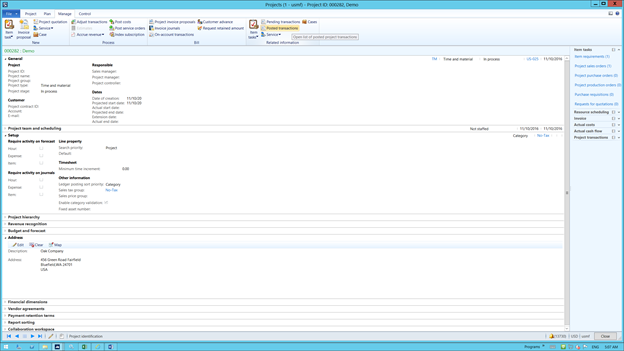
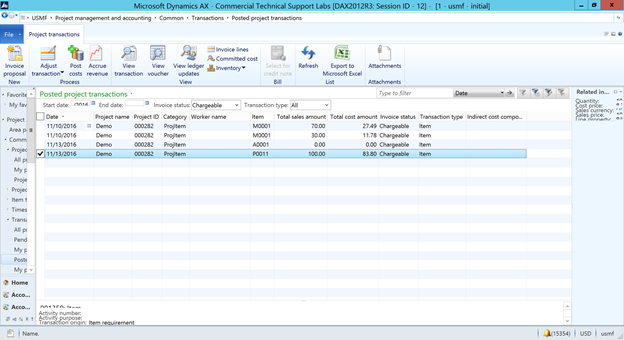
We see that the project posted transactions are getting populate on Packing slip posting itself if we use Item requirements which is correct
Step 8: Check Sale order Line status
USMF/Project management and accounting/Common/Projects/All projects
Select project 000282
Plan tab >Item requirements
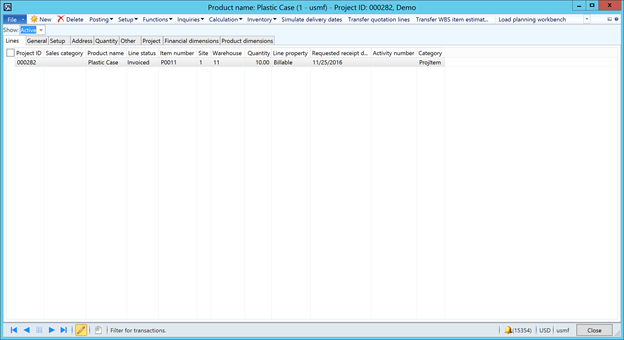
Select Show All and Inquiries >Sales order
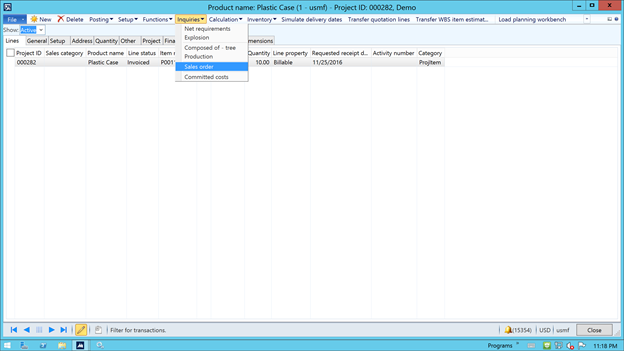
Step 9: Check Line status of the Sales order
*** Actual Result ***
We see that the line status of the Sales is “Invoiced ” which is correct as we had made a complete consumption (full 10 quantity)
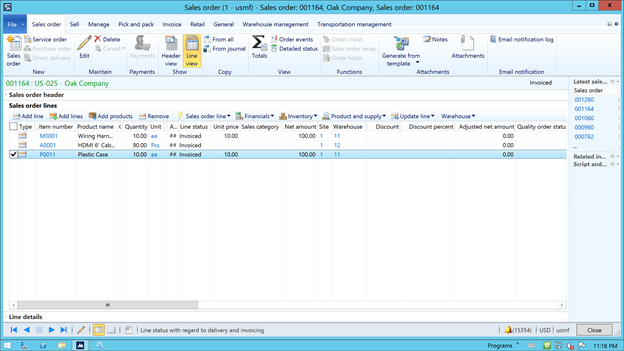
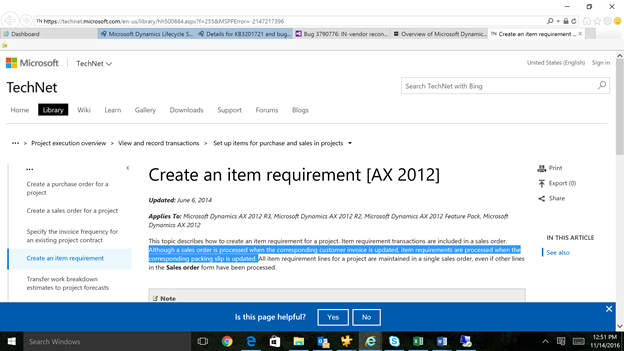
That’s because for Item requirements, Item transactions are consumed when the packing slip is updated.
Although a sales order is processed when the corresponding customer invoice is updated, item requirements are processed when the corresponding packing slip is updated.
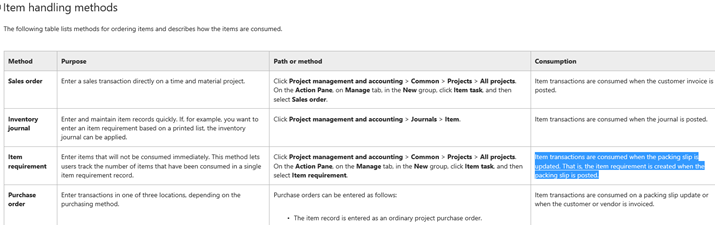
NOTE: Sales order line status is Invoiced as it was invoiced as part of the Item requirement (which is Invoiced after posting the Packing slip)
![Avatar of Maharaja GK [MSFT]](https://secure.gravatar.com/avatar/cb1be11a428459fa98ae1a1374c85206871069eba1cc7c3996cb52e3492d26f3?s=212&d=mm&r=g)